
Map alignment & token scale
Most map images arrive slightly wrong: the drawn grid does not line up with Foundry’s, its cells are an odd number of pixels, and the only statement of scale is a printed bar in the margin. The assistant fixes all three from a few samples you draw on the canvas, then sizes tokens to what they actually are.
It starts by asking what kind of map this is — squares, hexes, or no grid at all — because everything else reads differently under that answer.
Two parts, and they do different jobs. Battlemap in the scene controls down the left of the canvas — the ruler-and-square icon — holds the four ways of sampling a map, plus a wipe. The panel it opens is where the numbers and the buttons live, with the apply pinned to the bottom so it is never something to scroll for.
Entering the group brings the panel up for you; the close button on its title bar puts it away. Drag it wherever suits the map you are aligning — it opens clear of the middle. Nothing is lost by closing it: your samples and the numbers you typed belong to the scene, and they are still there when you come back. The scene’s configuration has a Battlemap row as a second way in. GM only.
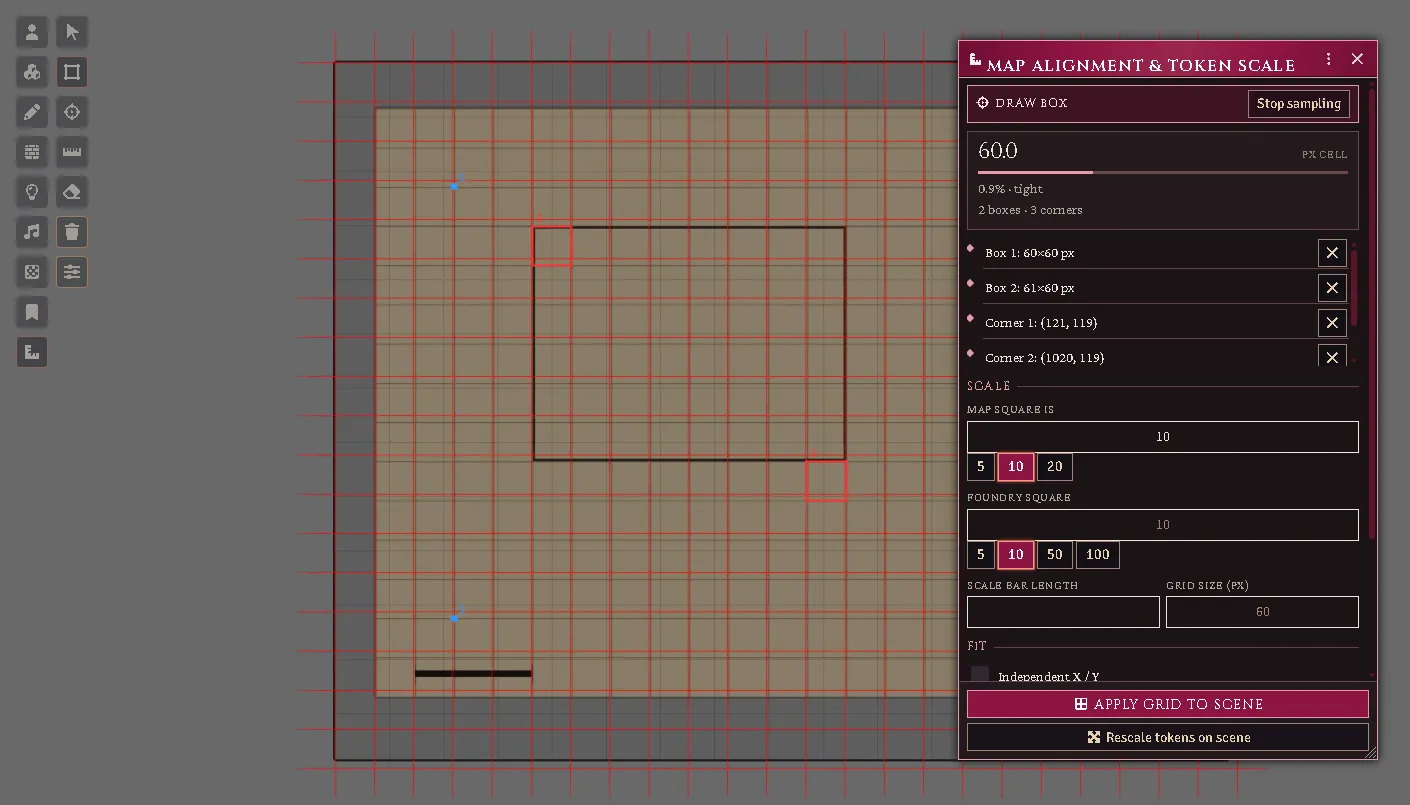
The panel is a window: it opens over the map, carries its own title bar and close button, and moves wherever you put it. Draw box is armed on the left, two boxes and three corners are sampled on the map’s own squares, and the fitted lattice is drawn over the image. The card reads the cell it measured and how well the samples agree; underneath, the two scale decisions — what the map’s square is worth, and what a Foundry square should be — each with its own chips. Stop sampling sits at the top, the apply at the bottom.
What kind of map is this?
Section titled “What kind of map is this?”Four answers, at the top of the panel. The rest of the panel changes to suit the one you pick, and it opens on whatever the scene already uses.
- Square grid — the ordinary battlemap. Foundry gets a square grid fitted to the boxes you draw on the map’s own squares.
- Hex grid — rows (pointy-topped) or columns (flat-topped) — a wilderness or campaign sheet. Draw a box around one hex and say what a hex is worth; one drawn hex becomes one Foundry hex. If the applied hexes come out half a cell out of step with the map’s, tick Even offset.
- Scale only — no grid — the map has no grid to fit, or you do not want one. Drag along its printed scale bar, say what the bar reads, and the scene measures true: the ruler and token sizes are right, the image is never rescaled, and a gridless map stays gridless.
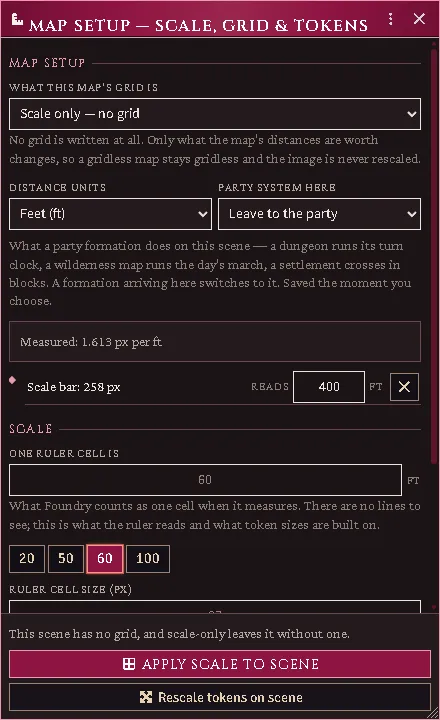
Scale only. The map’s printed bar has been dragged and told what it reads — 400 feet — on the bar’s own row, and the panel says what it measured: 1.613 pixels per foot. Below it, what one ruler cell should be worth, with chips for round values near the one it would pick by itself.
Distance units are yours to name — feet, yards, miles, metres, kilometres — and are written to the scene with the scale. Everything that knows a real length converts through them, so a party on a map of six-mile hexes is sized as a party rather than as a county.
Party system here says what a party formation does on this scene: a dungeon runs its turn clock, a wilderness map runs the day’s march, a settlement crosses in blocks. A formation arriving takes that system, and follows if you change it while they are standing there. Leave it at Leave to the party and nothing is imposed. It saves the moment you choose it — there is no need to apply a grid to label a map.
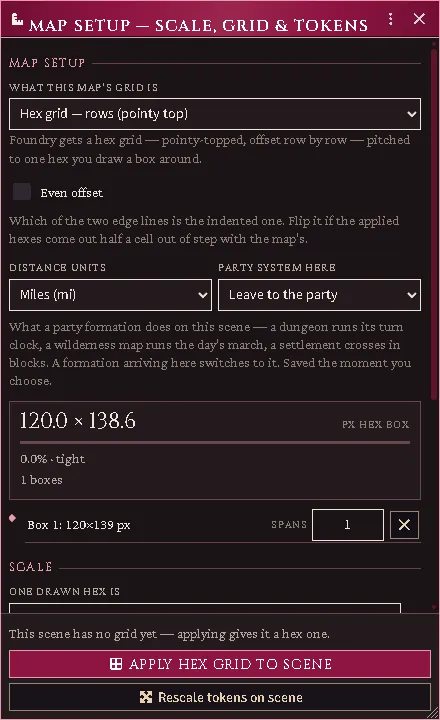
The same panel set to hexes. One box has been drawn around a single hex; the card reads the box it measured, and the apply says which grid it will write.
Teaching it the grid
Section titled “Teaching it the grid”Pick a tool from the Battlemap controls and work on the canvas — the panel mirrors them if you would rather stay in the window. Mix and match: more samples make a better fit, and the red preview grid snaps onto the map’s lines as soon as it has enough. Closing the panel keeps your samples; the tools go on working.
- Draw box — drag a rectangle over the map’s own squares. Do a couple in different corners of the map. A box does not have to be one square: drag across a run of them and say how many it spans on the box’s own row — easier to aim, and a better measurement. If you know what a square represents (many maps say “1 square = 5 feet”), type it in One drawn square is.
- Pick corners — click grid intersections. Corners several squares apart are the most informative kind of sample.
- Scale bar — drag end-to-end along the map’s printed scale bar, then type what it reads on the bar’s own row.
- Eraser — click a sample to remove it. Ctrl+Z removes the newest one and Wipe clears everything. The right mouse button is left alone, so you can pan across a big map without losing samples.
Stopping. The arrow at the head of the Battlemap tools is off — nothing is armed until you pick a mode, and picking the arrow again stops. So does Escape, and so does the Stop sampling button that appears in the panel whenever a mode is armed. Your samples are kept either way.
The fit panel reports the cell size and how well the samples agree. If the map was scanned stretched, tick Independent X / Y; if it was scanned crooked, tick Allow skew — the fit then reports the skew and rotation it found, and offers to bake a corrected image (a straightened copy saved beside the original; your original file is never touched).
Confirming the scale
Section titled “Confirming the scale”The assistant shows what it derived a map square to be worth — from the scale bar, or from what you typed — with chips for the likely intended value (4.9 becomes 5). Confirm it.
Then choose the One Foundry square is — the grid this actually writes. Leave it empty and one Foundry square is one drawn map square. On a coarse map — a wilderness sheet drawn at 100’ per square, say — you can instead ask for 5’ squares, and each drawn box carries a neat 20×20 of them. A warning appears if the two grids cannot share lines.
Applying
Section titled “Applying”Two separate buttons, in either order, as often as you like:
- Apply grid to scene rescales and shifts the background so Foundry’s grid sits exactly on the map’s, and sets the scene’s distance-per-square. Foundry repositions anything already placed proportionally — the confirmation dialog reminds you. On a hex map the button says Apply hex grid, and lands the hex you drew a box around on a real one.
- Apply scale to scene, in the scale-only mode, writes nothing but what the map’s distances are worth. Nothing is rescaled and nothing moves.
- Rescale tokens on scene resizes every token to its real footprint at the scene’s scale: monsters by their size category, everything else man-sized unless told otherwise. A formation’s party token is left to the formation rules, which size it by its frontage.
After applying, the scene auto-sizes tokens as they are dropped — a Large monster lands 2×1, a character on a 100’ wilderness grid lands as a quarter square. Turn this off with the Auto-size tokens checkbox in the scene’s configuration.
The size hotbar
Section titled “The size hotbar”Selecting tokens means the ordinary Token controls, so switch back to them when you want to — the panel stays open where you left it. Select tokens and click a chip — 2½’, 5’, 10’ and up, or a custom value — to stamp that footprint on them. Reset selected to default removes the stamp and re-derives from the creature’s size. A stamped footprint sticks to the token and survives rescales.
Painting the country
Section titled “Painting the country”The group’s Country brush tool arms a brush on a hex-gridded map and opens its palette. Two pills at the palette’s head pick what the brush paints:
- Terrain — one swatch per kind of country the encounter tables know: the forests, hills, mountains, scrublands and swamps at the grain the book prints them, with any further kind your imported travel tables name. Each kind becomes a tinted region everyone can see.
- Territory — civilized, borderlands, outlands or unsettled.
A third pill, Domain, appears once the world holds a domain: it paints hexes into a domain (Domains).
Click or drag to paint hexes. Each pill holds one value per hex, and painting over replaces it; a hex can be a forest and borderlands at once. The eraser clears the hex on the pill you are on and leaves the other alone. Territory is drawn for you alone, as a map mode (below). A stroke paints only the map: dragging across a window in front of it paints nothing behind the window.
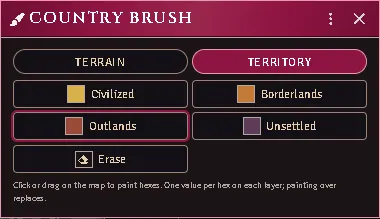
The Country brush on its Territory pill: one swatch per territory, and the eraser.
Map modes
Section titled “Map modes”Your map shows one mode at a time over its terrain. Terrain is the map as everyone sees it. Territory draws a border in each territory’s colour around the land you painted it on, inside the hexes, so the terrain colour still fills each hex and two territories meeting show as two lines. The group’s Map modes tool opens the window that picks the mode; pressing the Territory pill on the brush picks it too, and it stays on, through every control, until you pick Terrain again.
The window lists what each colour means, what a hex with no border reads as (the scene’s own territory), and the map’s climate. Opacity fades the borders; Handout view hides them, and the road and water markers, while you show your screen. Players never see a map mode. The territory regions themselves show only on the Regions control; a map painted before this is moved there the first time you open it.
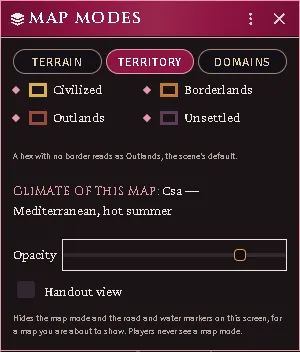
The Map modes window on Territory: the legend, what an unpainted hex reads as, the map’s climate, the opacity and the handout view.
A hex nobody painted reads as the scene’s own country. The Battlemap window has Ground here and Territory here for it — for a map that is one country throughout, or that is not a hex map at all — and Climate of this map, the climate every hex of the map shares. Each is saved the moment you pick it.
A map painted with climates hex by hex, as the brush once allowed, takes the climate most of its hexes held the first time you open it where it names no climate of its own, and a notification says which. Its old climate regions stay in the Regions tab, read by nothing, for you to delete.
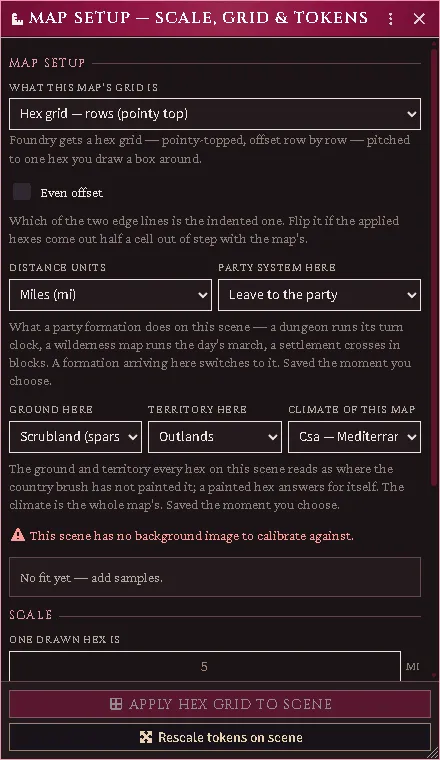
The Battlemap window with the scene’s own ground and territory, and the climate of the whole map.
A journeying party reads all of it: the hex it stands in answers the ground its speed, road and foraging are priced on, the table its encounters draw from, its territory and its climate. The party sheet shows each answer and where it came from, and the Judge tab overrides any of them (see the formation guide, Overland travel). A map painted with the older ground brushes still sets the ground, with that ground’s usual encounter table; a hex painted with a river before rivers became lines still sets the river’s table.
Rivers and coasts
Section titled “Rivers and coasts”A river or a coastline is a line you draw, not a hex you paint. The group’s River and Coastline presets arm core’s wall tool and hand it to you, so the next walls you draw are that water — the same way the road presets work. For walls that already exist, the Walls control carries Mark the selected walls as water, which makes each selected wall a river. A water line blocks nothing; if a wall you marked still restricts movement, the notification says so, because the party cannot travel along it.
The wall’s own sheet gains a water row: river or coast, A boat can follow it, and the line’s name. A river starts out one a boat can follow; a coastline does not. While you are on the Walls or Battlemap controls the lines are drawn over the map for you — a river solid, a line no boat can follow dashed — and players see none of it.
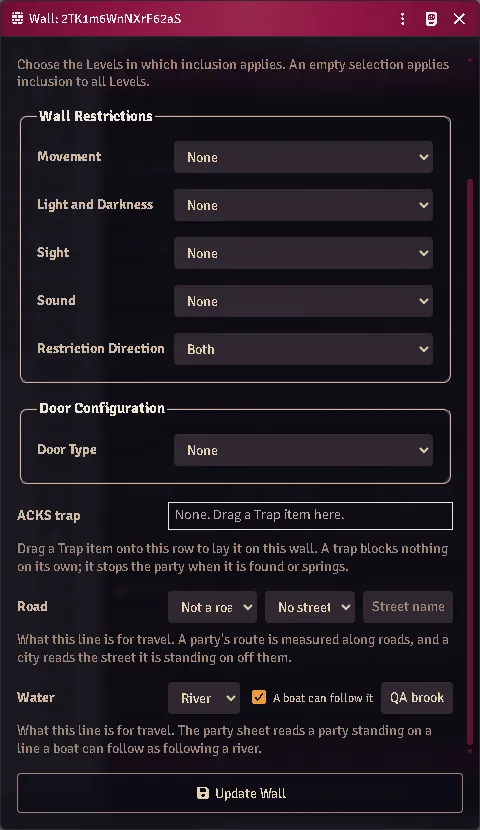
A wall drawn with the River preset: every restriction None, the road row empty, and the water row naming a river a boat can follow.
A party standing on a river a boat can follow is following it, and the party sheet says so without being told. A party travelling by vessel over any water line draws its encounters from the river’s table.
Formations
Section titled “Formations”A party token is as wide as its marching frontage in feet (each body’s width is the March width per body world setting) and as deep as its ranks, at whatever scale the scene uses — turn the column east and the token turns with it. Set the frontage on the party sheet as always.
Every feature here is free and none of it is gated. If it earns its keep at your table, you can chip in on Patreon.