
Proficiencies and class powers
The system’s own ability item, given a real model: several throws instead of
one, targets that scale with level or rank, and selections that light up the
matching proficiency pills.
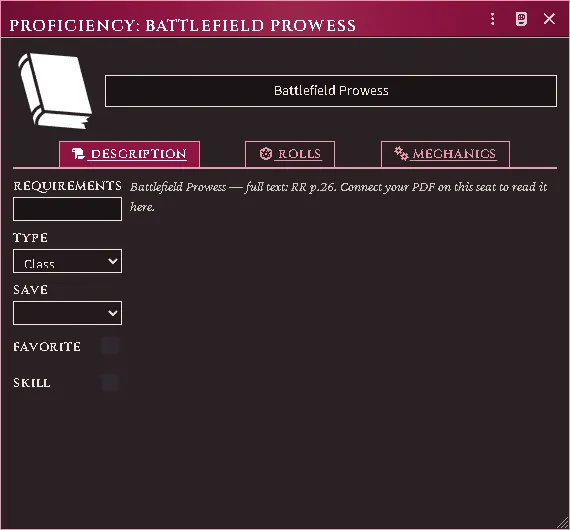
An ability item’s sheet, with its rolls and mechanics.
The sheet
Section titled “The sheet”Open any ability item. Beyond core’s fields:
- Mechanics — Imported mechanics, what the ability does as read from your
book, and below it the system’s own Active Effects, folded in rather than kept
in a separate tab. The imported rows describe the ability; the module applies
only some of them. To make an ability change a number on the sheet — Armor
Class, a save — give the character’s copy an Active Effect: + New Effect
under Effects, then a change with key
system.ac.mod(Armor Class), type Add, and the value the ability grants. - Rolls — every throw the ability makes.
- Selections — the picks a proficiency of this category can take.
On the character sheet the ability list files itself, so a long proficiency list is not one scroll.
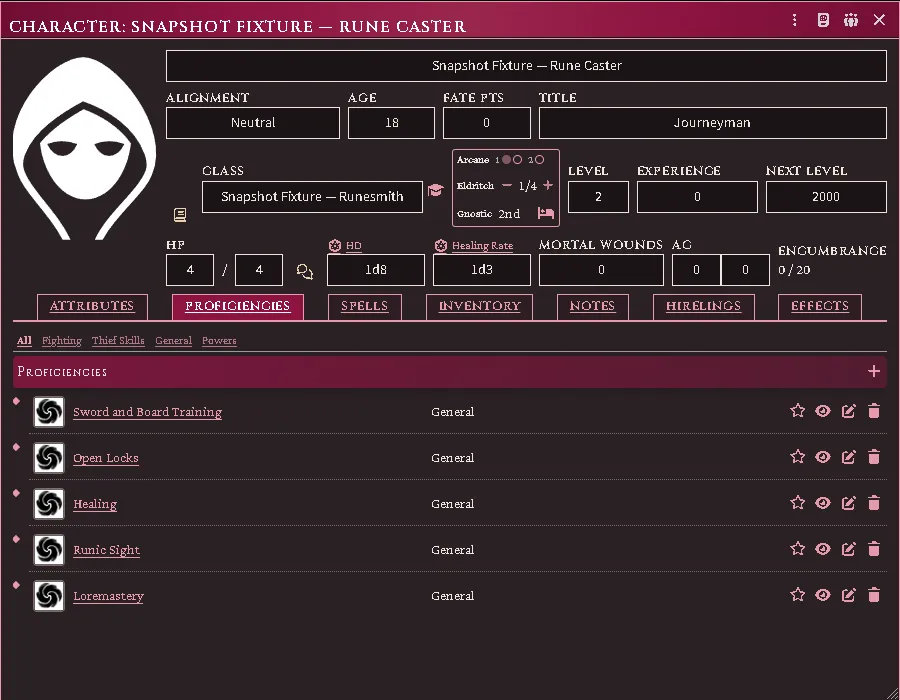
The ability list’s filter bar: fighting, thief skills, general, powers.
Multiple rolls
Section titled “Multiple rolls”Core stores one roll per ability, so every route into a roll — the sheet’s
proficiency row, a chat card button, item.use(), a hotbar macro — could only
ever reach an ability’s first throw, while the Rolls tab showed all of them.
The same ability rolled differently depending on where you clicked.
This module owns the ability roll path and routes all of them to the same place. Add as many throws as the ability has; they all work from everywhere.
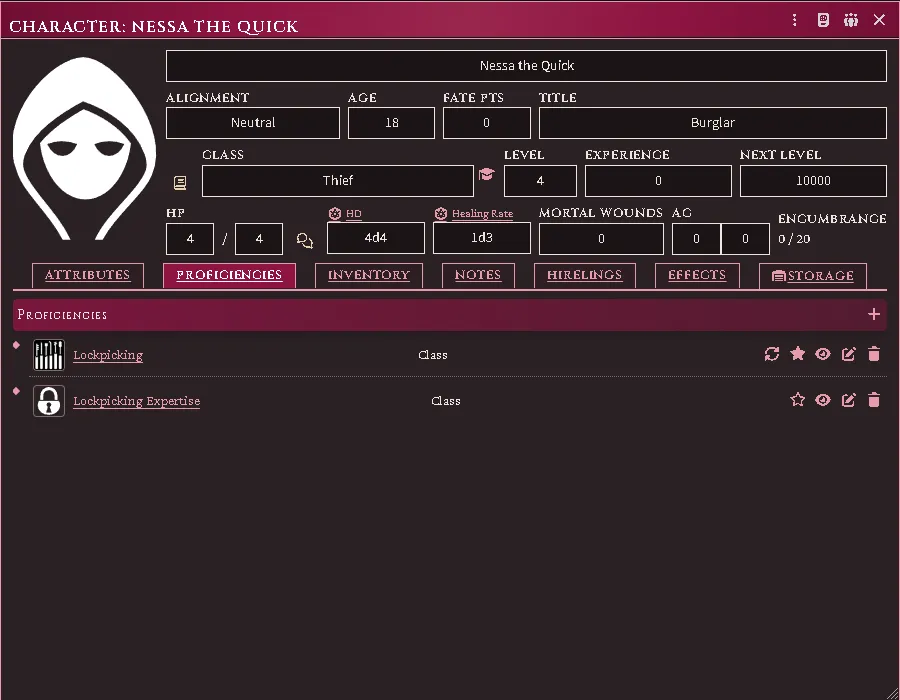
Every throw an ability offers, each rolling its own.
Typing in a throw
Section titled “Typing in a throw”The Rolls tab is a list you edit like an inventory:
- Add a throw puts a new one at the bottom and opens it.
- The pencil on a row opens that throw; the trash deletes it, after asking.
- The row itself is still the roll button.
The window that opens holds everything about that one throw — what it is called, what it rolls, whether the result must reach the target or stay under it, and when it applies. Changes save as you make them; there is no Save button.
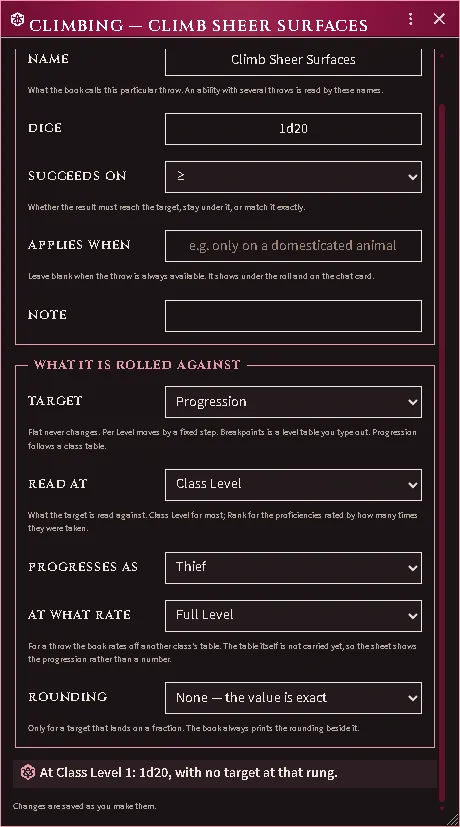
One throw’s window: what it is called, what it rolls, whether the result must reach the target, and what it is read against — with the line at the foot working the answer out for the character holding it.
Read At is the thing to get right. Most throws are read against class level; the proficiencies the books rate by how many times they were taken — Animal Husbandry, Naturalism — are read against rank. The line at the bottom of the window shows what the throw comes to for the character holding it, which is the quickest way to check you typed the table the way the page prints it.
A throw against an ability score
Section titled “A throw against an ability score”Some throws are written against a character’s own score rather than a flat number. Pick the score in Score modifier, and — where the throw wants a multiple of the modifier rather than the modifier itself — say how many times it counts in the box beside it. Leave it at 1 for the plain case.
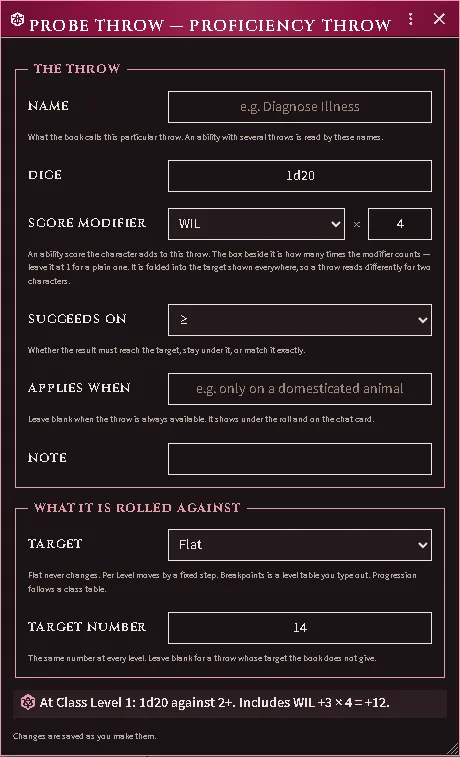
A throw taking four times the character’s Wisdom modifier. The preview at the foot of the editor shows the target it produces and names the term inside it.
The modifier is folded into the target, so the same throw reads 4+ for one character and 6+ for another. Every surface that shows the throw names the term as well as the number — the editor’s preview, and the chat card when it is rolled — because a target that moved with no visible cause reads as a typo. A throw that must match a number exactly takes no modifier at all: the score is still shown, said plainly to be unapplied.
Level tables
Section titled “Level tables”Set Target to Breakpoints and the window grows a table. Add one step for each point where the printed number changes — a step holds from where it starts until the next one begins, so a throw that is 11+ at one rank, 7+ at two and 3+ at three is three steps, not one per level.
The table belongs to that throw. Sharing one table between abilities is not built yet.
Per Level is the shape for a target that moves by a fixed amount each level rather than in steps; a target that gets easier moves down, so write the change negative. Progression is for a throw the book rates off another class’s table — the table itself is not carried yet, so the sheet shows the progression instead of a number.
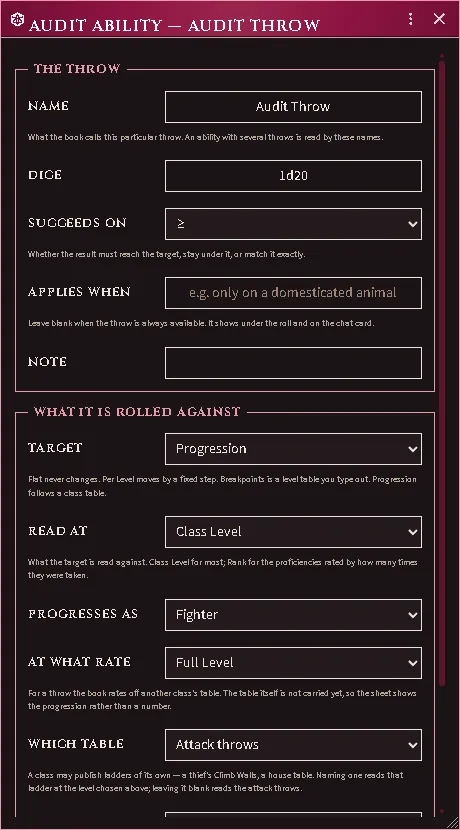
A progression throw naming a ladder the class publishes, beside the attack-throw default.
An ability with no roll shows itself instead of rolling. Core intends this,
but tests a field that defaults to "1d20" and is therefore never empty — so a
proficiency that makes no throw used to post a d20 against a target of 0.
To announce one at the table, press the eye on its row in the character sheet’s Abilities tab: the ability’s card goes to chat with its description, which is how a power that grants a bonus rather than a throw is put in front of everyone. Dragged to the hotbar, the same ability posts the same card. The card announces it; a bonus the power grants reaches the sheet only through an Active Effect (see Mechanics above).
What a throw looks like in chat
Section titled “What a throw looks like in chat”A proficiency throw posts on the same card the system uses for every other roll:
the ability’s name in the banner, its image beside it, and the verdict with the
target it was read against — Success (14+). If the book puts a condition on the
throw (“only on a domesticated animal”), it sits under the result, so the table
can see what the roll assumed. A throw on a shared compendium item says so
instead of scoring itself, because there is no character to read its ladder
against.
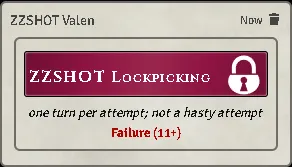
A throw posted on the system’s own card: banner, portrait, condition, verdict.
Clicking a throw asks first. A small window shows the formula, takes a situational modifier — a whole number, added to the dice as its own Situational term — and lets you choose who sees the roll, starting from your chat’s own setting. The card then opens with the natural die: Natural 14 + 2 (Situational) = 16, so the table can see what the die showed and what was added. Hold Shift, or whichever key the system’s skip-dialog setting names, to roll at once. An ability marked blind always rolls blind, and the window says so instead of asking. On a throw that succeeds low, a positive modifier makes it harder.
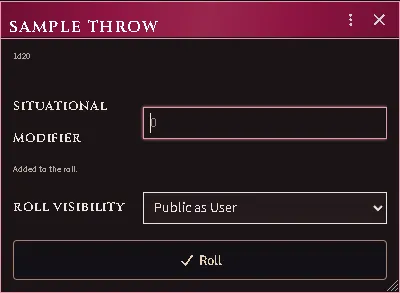
What a click on a throw asks: a situational modifier and who sees the roll.
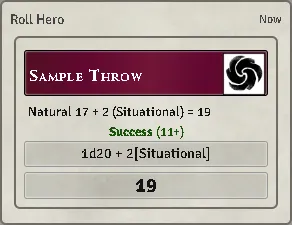
The card it posts: the natural die, what was added and the total, above the dice.
Selections
Section titled “Selections”Some proficiencies are not finished until you say WHICH: Weapon Focus names a weapon group, Fighting Style Specialization a style, Combat Trickery a manoeuvre, Art/Craft a discipline. Those abilities show a box per printed choice, and ticking one is guaranteed to light the matching proficiency pill — the keys are the same ones the profile strips match on, so a pick you tick is a pick the rules actually read.
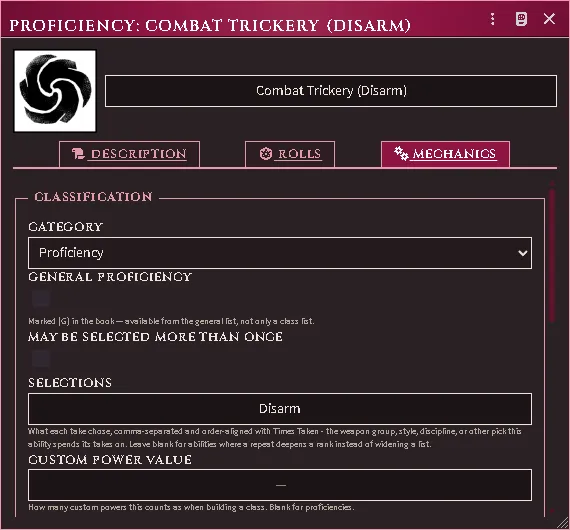
A proficiency’s Mechanics tab: classification, the selections a grant reads, and its Active Effects.
The open families start with no boxes at all. Art/Craft, Profession, Labor and Performance offer nothing out of the tin, because what a craft or a profession can be is a list out of your book and this module ships none of it. Type the pick into the free-text line under the boxes — that line is also where a selection goes when you clear the boxes entirely, so it is always available.
Give them boxes by importing or registering them. Once the entries have been read out of your own book they appear as ticks for everybody at your table. A Judge can also register them by hand:
acksExtras.lib.tables.registerTable( { id: "acks.selectionVocab", tables: { profession: { myKey: { label: "…as your book prints it" } } } }, { priority: 20 },);The closed families — Weapon Focus, Martial Training, fighting styles, Combat Trickery, Elementalism — take no additions, because each entry drives a rule the module resolves and a sixth fighting style would be a box that changes nothing. Languages are not on this list either: they are documents you fill slots with, not words you tick.
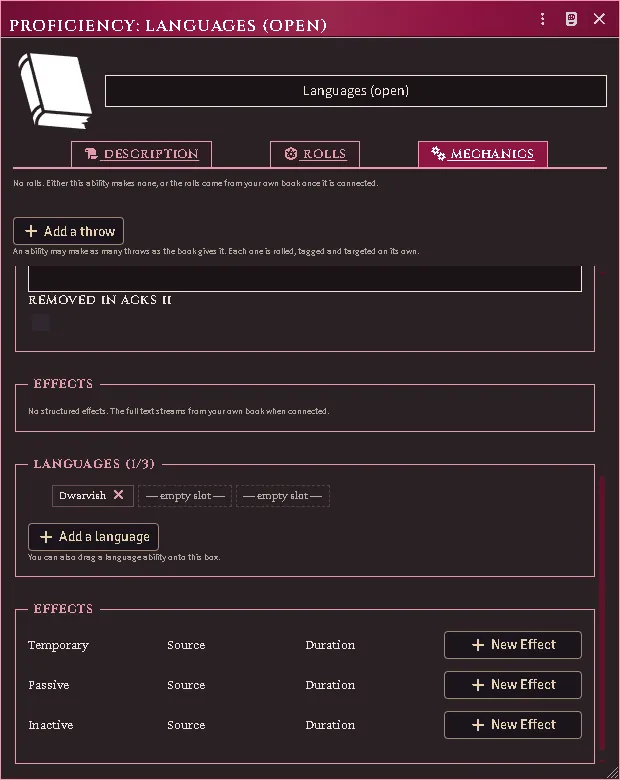
The open slots a character still has, and the tongue one of them bought — a real language document on the character.
Imported characters keep their picks. A template that says “Fighting Style Spec. (weapon & shield)” ticks Weapon & Shield, and one that says “Swords” ticks Swords & Daggers, rather than leaving the words sitting in free text where nothing matches them.
Weapon proficiency offers the whole selection vocabulary. Beside the seven weapon groups sit Any weapon, All missile weapons and one box per melee size, so a class trained in every missile weapon and every melee weapon up to medium size is four ticks, and the Training strip lights every class they cover. A single weapon is typed by name in the line and stays as typed — “sword” is the one weapon, “swords” ticks the group — because a box is a whole group and would widen a restricted list.
The name follows the pick. Choosing a selection renames the ability to carry it — Weapon Focus becomes Weapon Focus (Swords & Daggers) — so you never type the parenthesis yourself. Changing the pick rewrites the suffix instead of adding a second one, and clearing every box takes it off again.
Fighting styles list the five the combat rules resolve. A sixth that the rules cannot place would be a choice that grants nothing, so it is not offered.
Common problems
Section titled “Common problems”The sheet died with “the partial could not be found”. Open an ability first after a reload and the system’s Active Effects partial may not be registered yet. The module preloads it; if the system renames the file, the tab renders without that block rather than breaking.
A shared world item shows a ladder instead of a number. It has no owner to resolve against, so it presents the ladder itself. That is correct.
My roll target is 0. A core record sitting at its schema defaults (1d20,
target 0) is not a roll — those are field initials, not a throw anyone entered.
Every feature here is free and none of it is gated. If it earns its keep at your table, you can chip in on Patreon.